Upload your BLS, ACLS, PALS, etc…
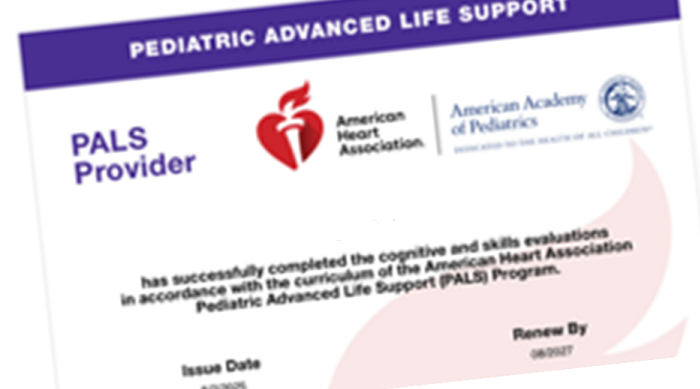
You will need to have a digital copy ready for upload:
- Email the certificate to your work email.
- Open your work email and save the certificate to the desktop.
Add the certificate to your talent profile:
- Click on “GHR” on the top toolbar. (on a Medical City Computer)
- On the left menu, click on “My Profile”
- A new menu will appear, click on “Talent Profile”
- Under “Skills” click on
- “Add Skill” if new
- or “Update Skill” if BLS is already there, but about to expire. Put a checkmark next to the skill before clicking on “Update Skill”.
- Fill out the form that pops up, all items with a red asterisk are required including expiration date.
- On this form you can upload the certificate from the desktop.
- Click on the little file folder icon that’s in the box
- On the “browser window” that pops up, choose “desktop” and look for the file you previously added to the desktop from your email.
- Click on Save